Note: These instructions are intended for scenarios where a user is not automatically created in PaSTA through integration and must be added manually.
- Open the Administration screen.
- Open the Security panel.
- Click the green plus icon to add a new user.
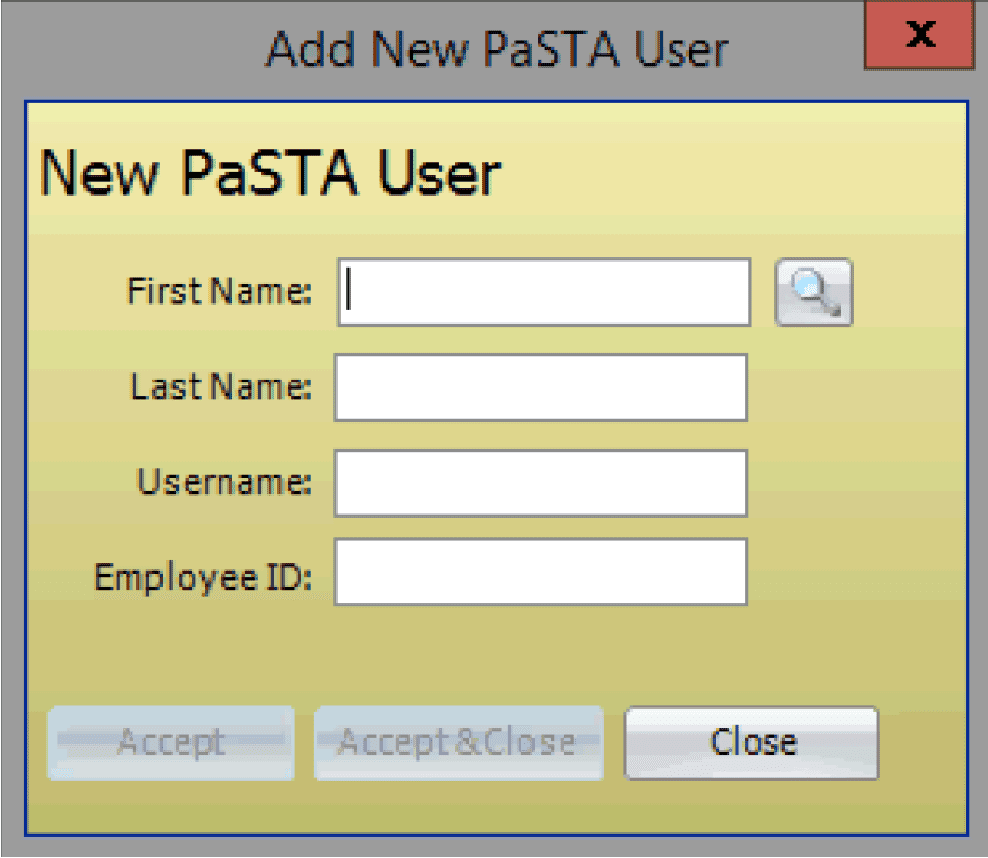
- The Add New PaSTA User dialog box displays. Enter the user’s First Name, Last Name, Username (must match the network login exactly) and Employee ID.
- Click Accept to continue entering users or Accept & Close to create the user.
- Verify that the Login is enabled. If not, click the Login checkbox for the new user. Uncheck Login to disable a user.