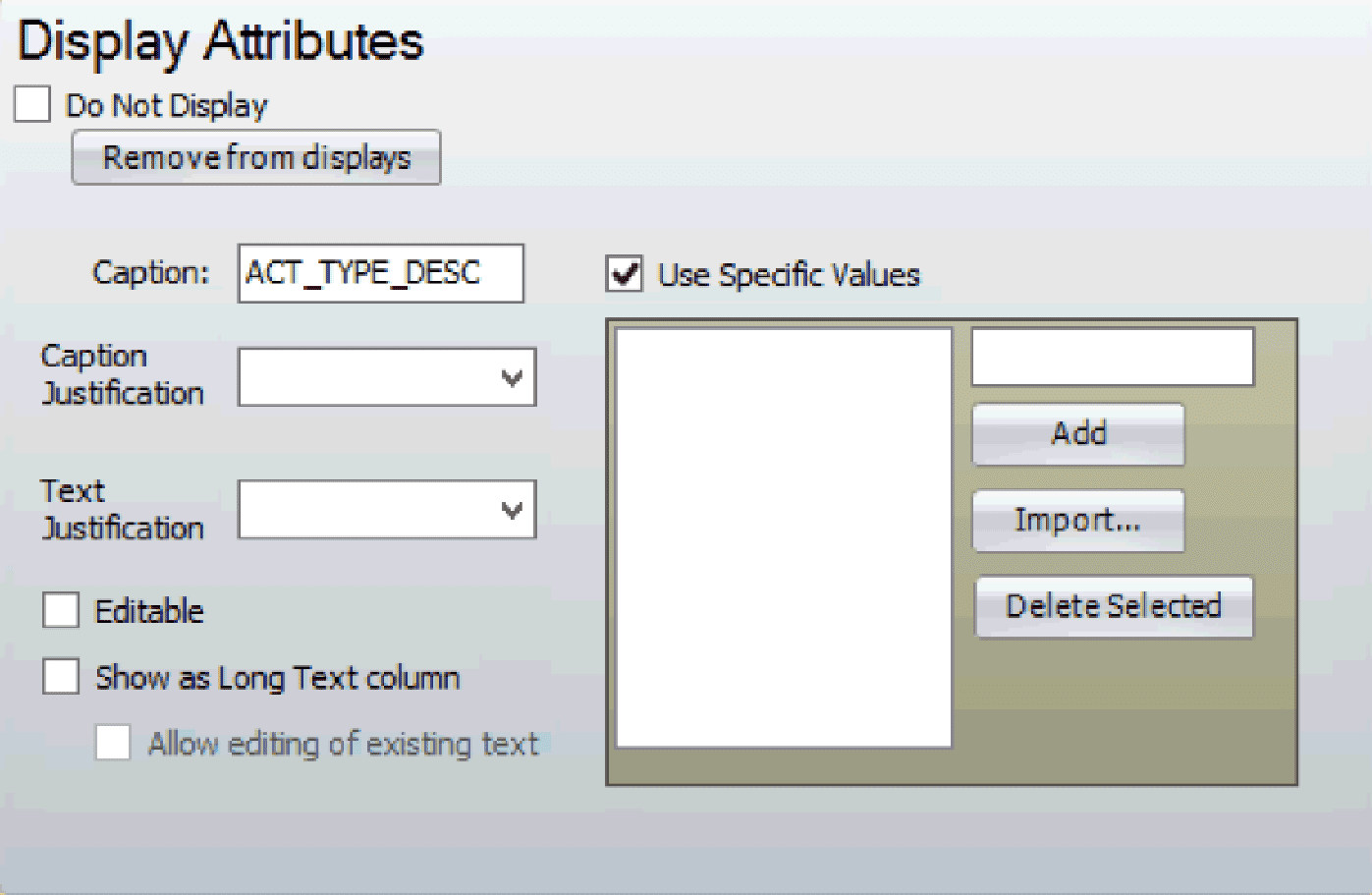
Display Attributes control how columns appear in PaSTA. Administrators can show or hide columns, rename headings, set alignment, and make fields editable to fit their workflow.
- Open the Administration screen.
- Open the Import Interface panel.
- Click the Work Order Tasks tab.
- Note: For this example the Work Order Tasks tab is selected. However, the following steps will apply to any of the other tabs that permit you to make changes in the Display Attributes section.
- Select Display Attributes.
- On the left is the list of Task fields that PaSTA imports from the CMMS. When a field is selected the Display Attributes box appears on the right to make changes.
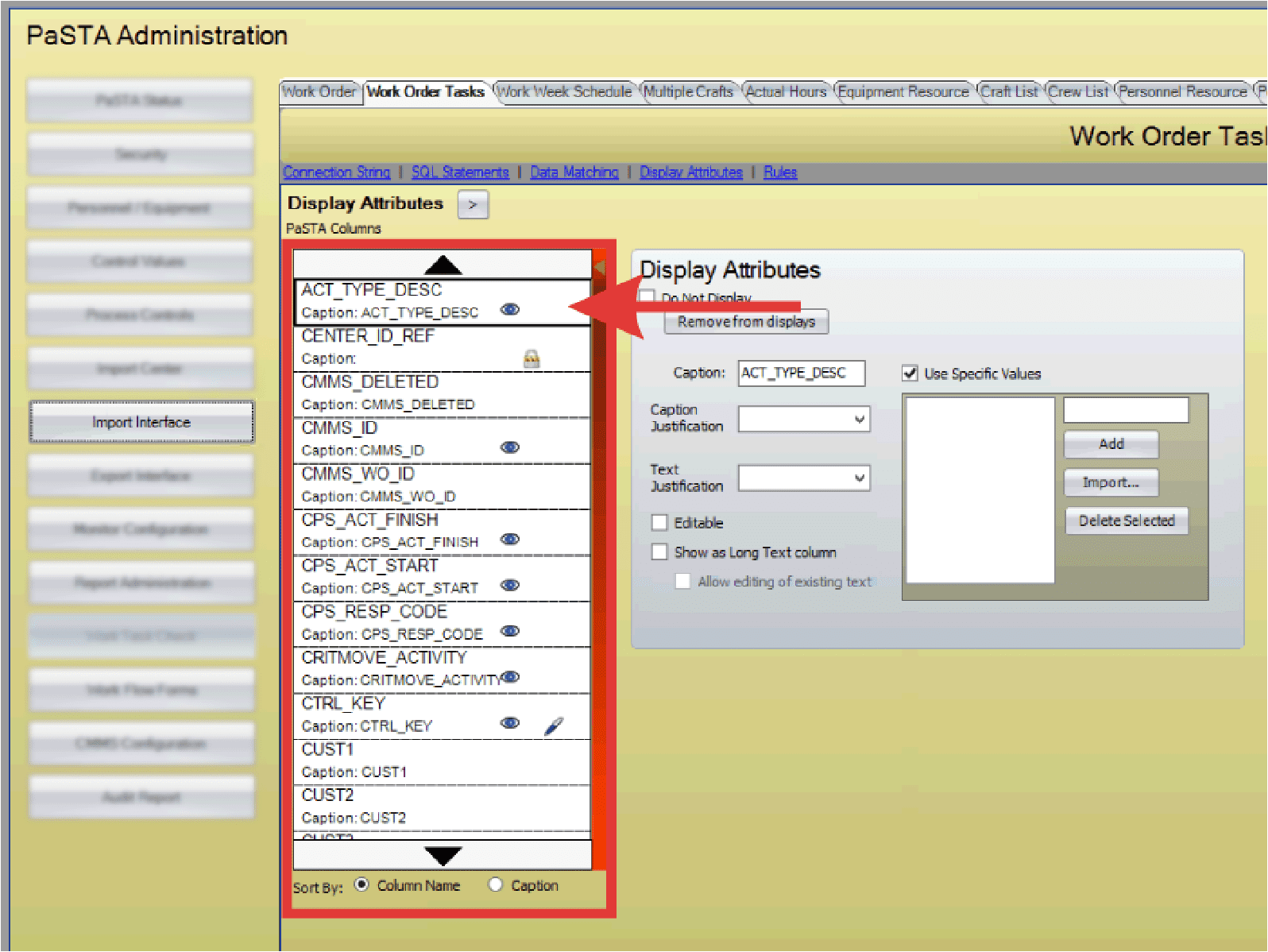
- Columns with a lock icon are reserved for PaSTA and cannot be changed.
- Edit the Display Attributes.

- Do Not Display: Selecting this box hides the column from view in PaSTA.
- Remove from displays: Removes the field from the WO Search Results displays on the Work Orders screen.
- Caption: Change the column description displayed in PaSTA.
- Use specific values: Selecting this box enables the column to display a dropdown menu of unique values (Requires the Editable box to be selected).
- Editable: Allows the field to be edited in PaSTA and is indicated by a pencil icon.
- Show as Long Text Column: Converts the column to a long text format, allowing larger blocks of text such as paragraphs to be viewed (Requires the Editable box to be selected).