Shift patterns in PaSTA define the standard work schedules that crews and personnel follow. Administrators can assign a default pattern to a crew, apply it for a specific time period, or temporarily override it with a different pattern.
- Open the Administration screen.
- Open the Personnel/Equipment panel.
- Click the Crew and Personnel tab.
- Select a default shift pattern for a crew using the drop-down menu.
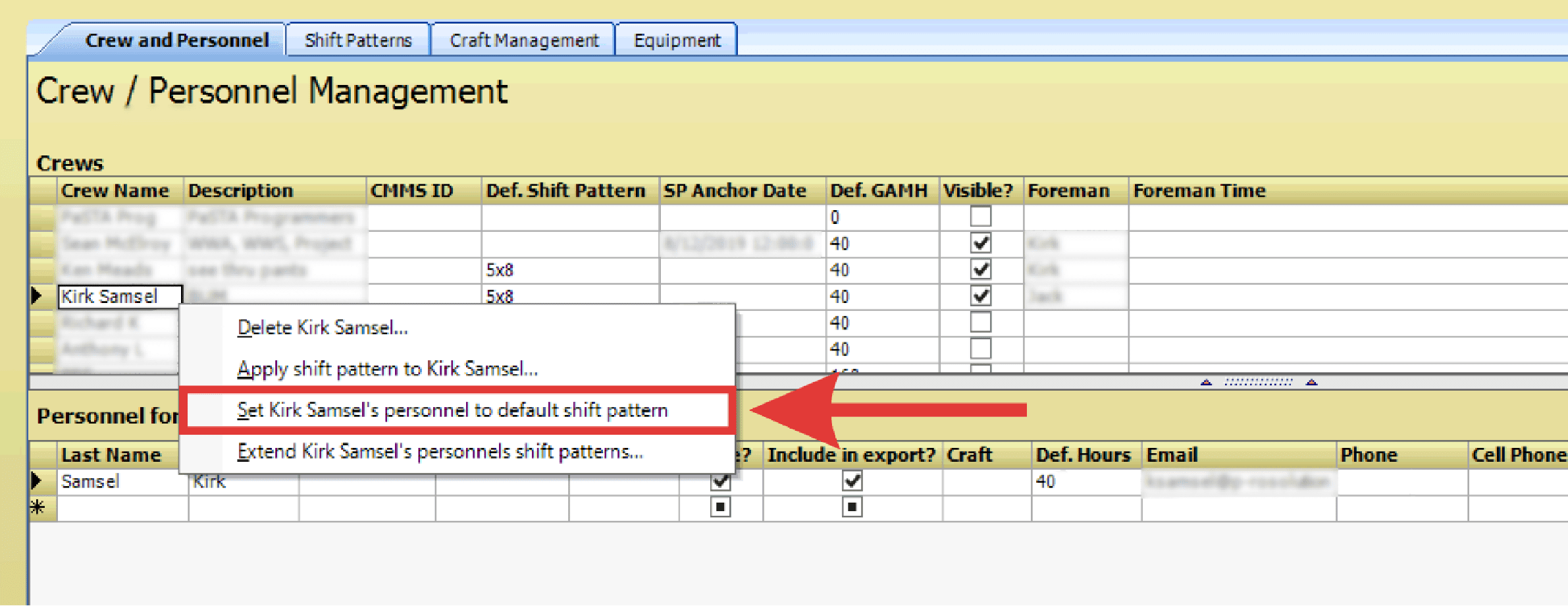
- Right-click on the crew row and select Set _____ to Default Shift Pattern from the right-click menu.
- Right-click the crew row again and select Apply Shift Pattern to _____ from the right-click menu.
- Verify that the shift pattern displays for personnel.
- The Modify Shift Pattern dialog box displays. Select the start and end dates using the calendar controls.

- Choose Replace if this will be the standard shift pattern for the crew.
- Choose Embed if this is a temporary shift pattern.
- Set Offset Within Pattern: Select a start date that aligns with the pattern’s start day (for example, choose a Monday if the pattern begins on Mondays). Then set the duration of the pattern timeline (such as 1, 2, or 3 years).
- Select Apply.