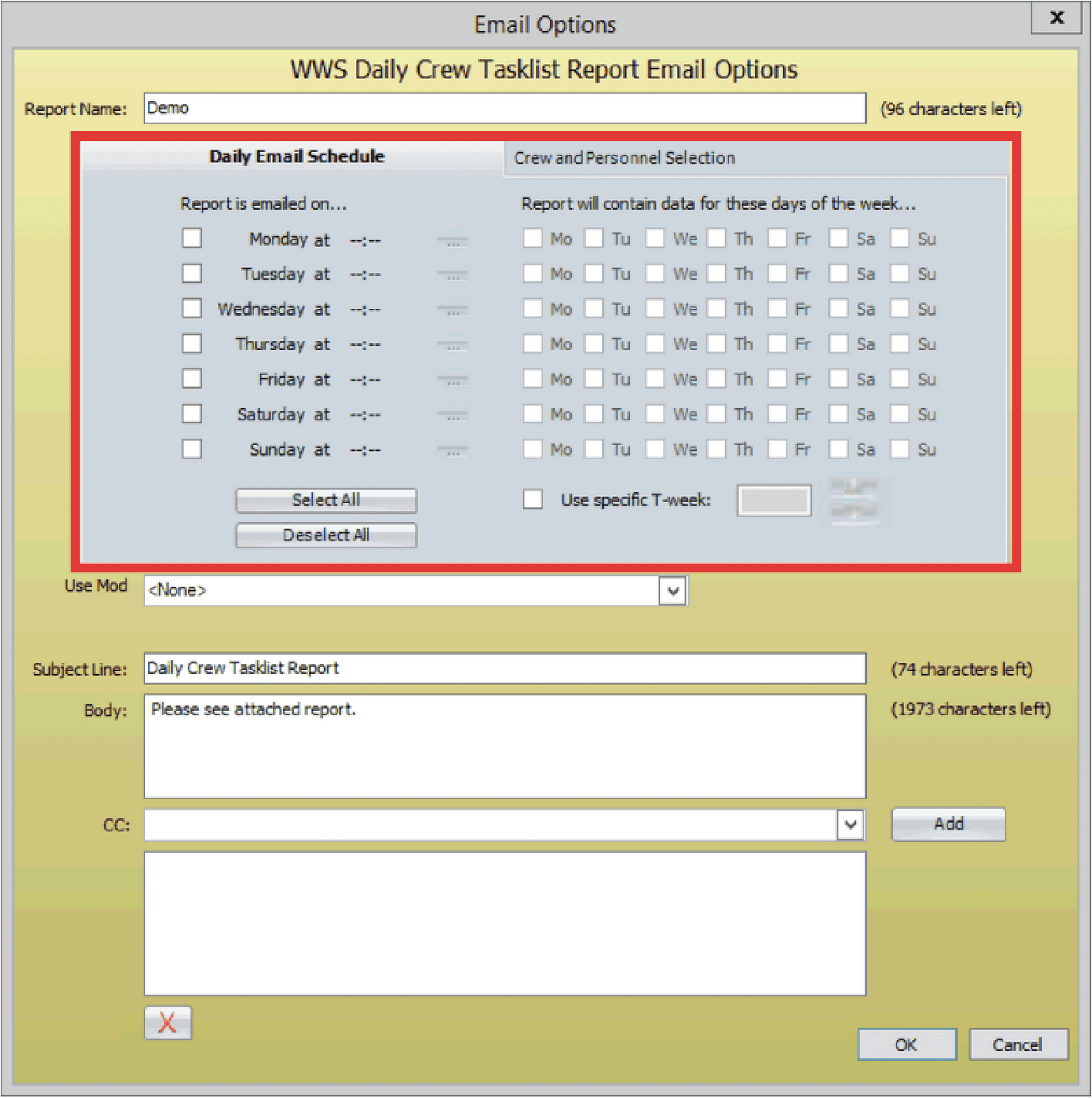
The Email Reports function in WWS automates report distribution by sending scheduled reports directly to selected recipients. Administrators can define the report type, delivery schedule, email content, and the crew or personnel included in the report.
- Select File > Print > Email Reports
- The WWS Email Reports dialogue box opens. Input the report name and select report type.

- Note: The “Daily Crew Task list” and the “Daily Personnel Task list” are the two reports that can be set up for email.
- Click Create.
- Select what days/time the report will be emailed and days the report data will consist of.
- Add a subject line and input what the email message should say.
- Use the drop down to select the emails you need to send to, or add the emails manually.
- Select the Crew and Personnel Selection tab.
- Select the crew and personnel you want the report data to represent.
- Click the OK button when finished.