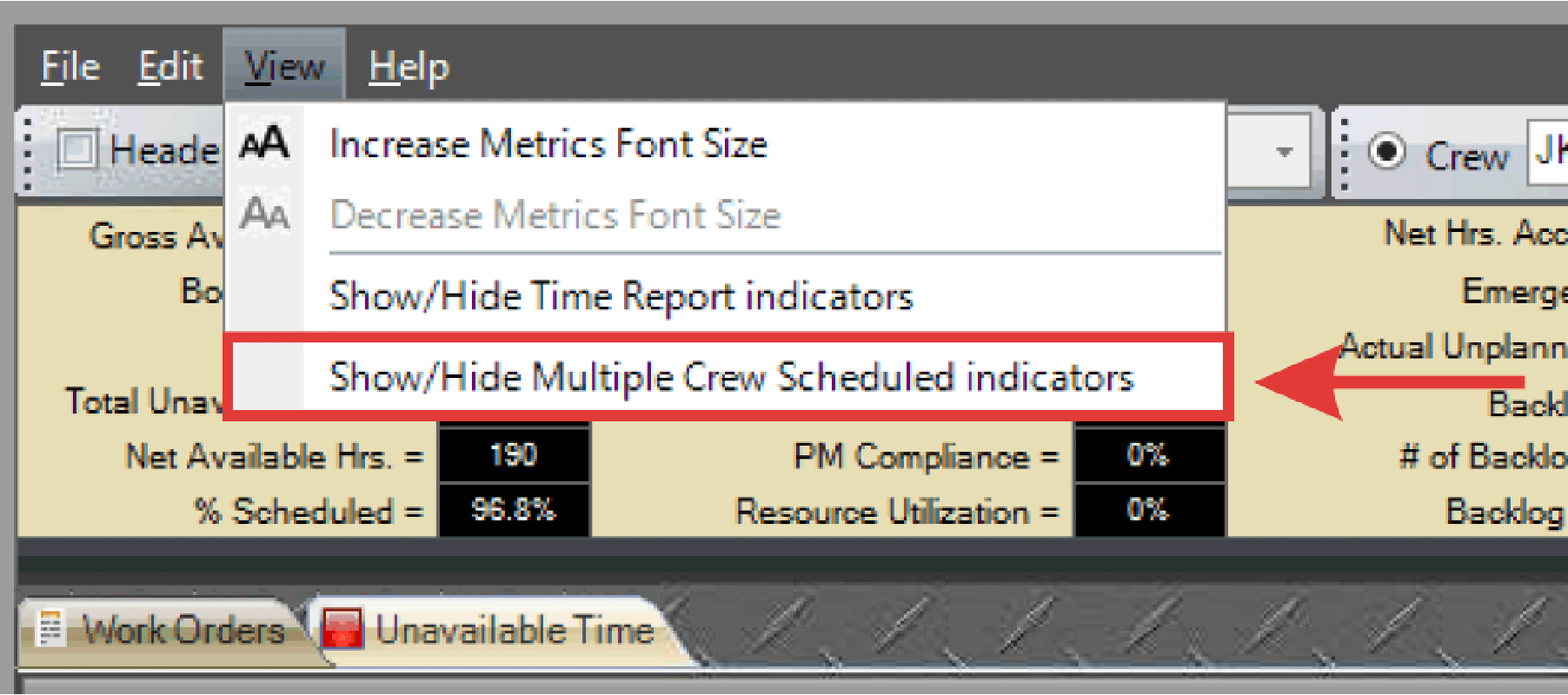
The WWS allows you to customize how key data is displayed in the Metrics area and schedule grid. Options include adjusting font size, toggling time report indicators, and highlighting jobs assigned to multiple crews.
Note: To reset to the default layout, select edit>reset layout to default.
Adjust Font:
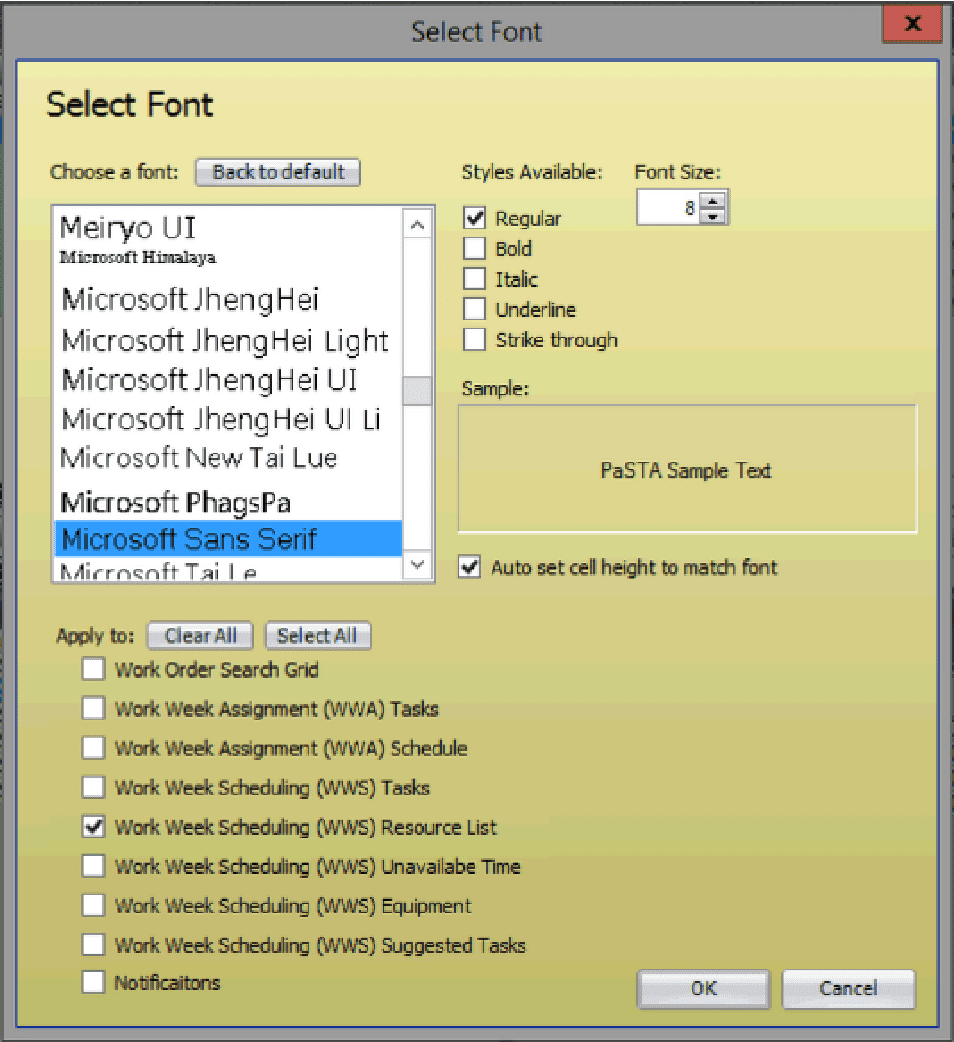
- Right-click in the grid and select Grid Font.
- The Select Font dialogue box displays. Change the font, font style, font size, and where to apply the changes.

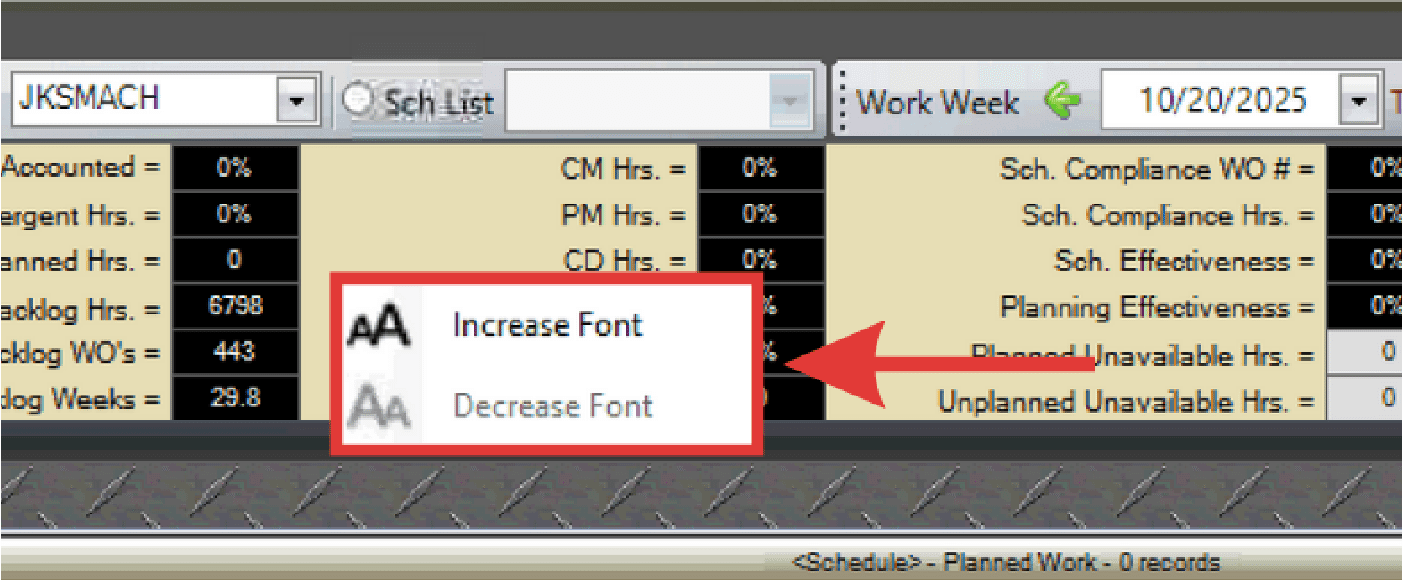
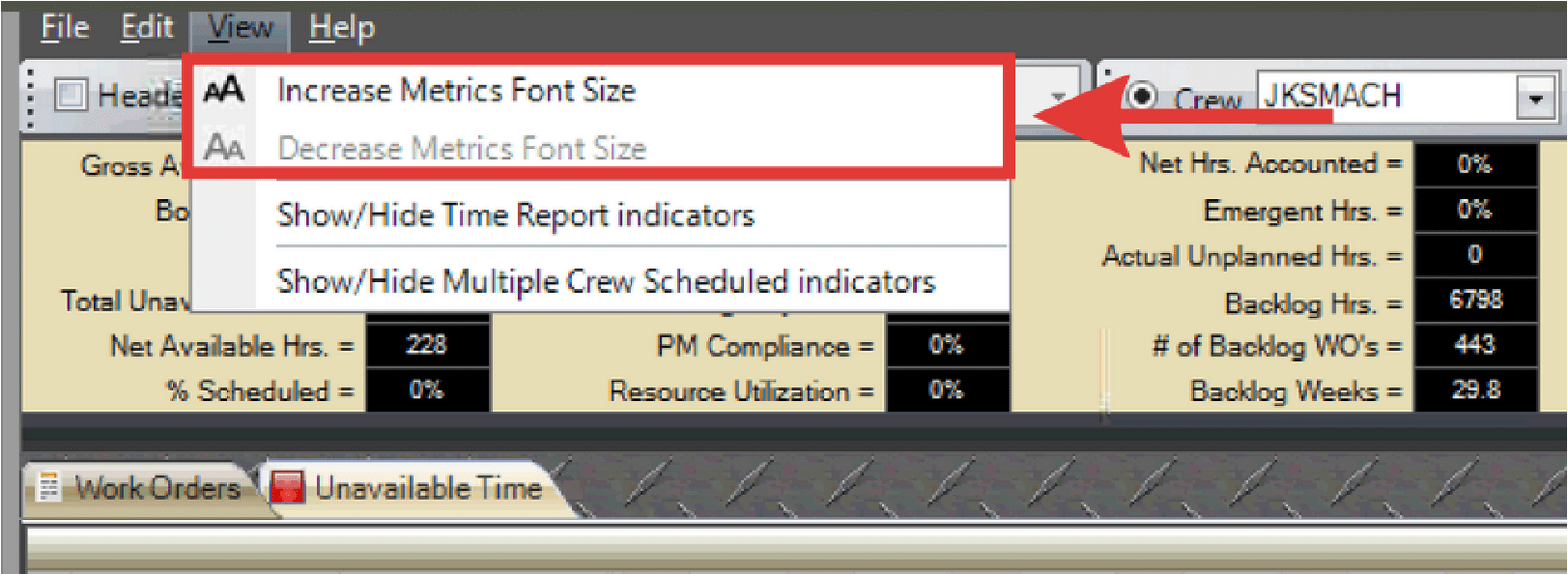
Adjust Metrics Font Size
- Right click inside the metrics area and select Increase/Decrease Font.
- Alternatively, select View > Increase/Decrease Metrics Font Size.
Show/Hide Time Report Indicators
- From the View menu, select Show/Hide Time Report Indicators.

- This toggles the black markers that indicate when actual time has been applied to a work order.
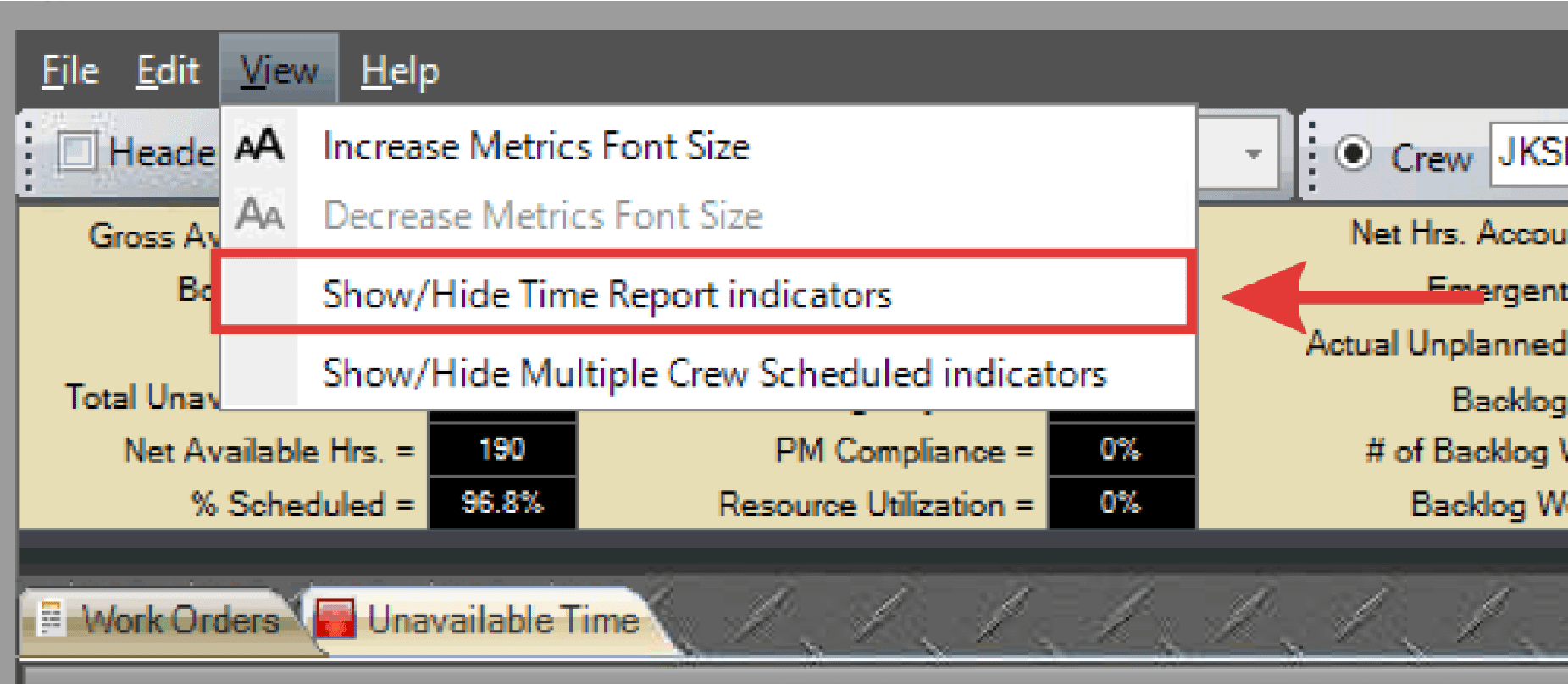
Show/Hide Multiple Crew Scheduled Indicators
- From the View menu, select Show/Hide Multiple Crew Scheduled Indicators.
- This toggles a blue visual aid that highlights when a work order task/operation has been scheduled to multiple crews.
- Hover over the work order to view additional details.