
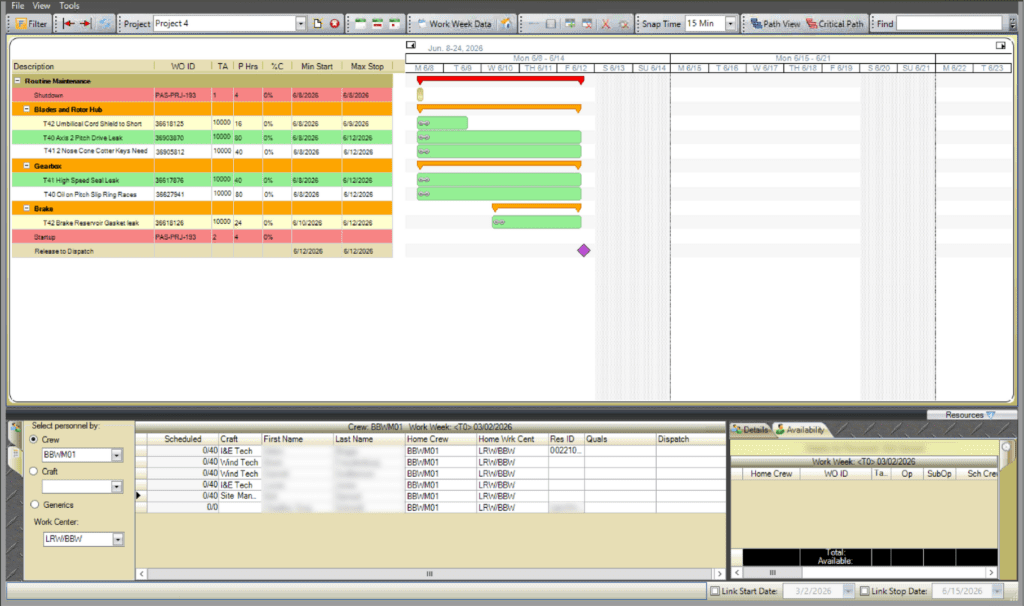
The Projects screen provides a structured way to plan, schedule, and coordinate related work within a single timeline.
Organize Work into Sections and Tasks
Projects are built by organizing work orders and milestones into sections and subsections. This structure allows you to group related work together and break larger efforts into manageable parts.
Work orders can be added to a project by clicking and dragging them from the backlog into the appropriate section. Work orders can also be added directly from the WWS and WWA by a right click function. Work orders are also referred to as tasks in the projects screen.
In addition to existing work orders, you can create your own custom tasks directly within a project. PaSTA assigns each custom task a unique Work Order ID and treats it like any other work order, allowing it to be scheduled, added to a work week, and assigned resources. These internal PaSTA work orders are not integrated with the CMMS, but will appear in the backlog with the prefix PAS-PRJ.
Build and Manage the Project Timeline
After work orders are added to a project, time entries are used to define when the task will start and finish. Right-click the task row on the day work will begin, select new time entry, and set the start time and duration to create a time entry.
These time entries determine how work is scheduled across days or weeks and create the visual project timeline. Time entries can be adjusted as plans change and linked to other tasks to reflect dependencies.
Assign Personnel to Time entries
Before personnel can be assigned, the time entry must first be added to a work week. To do this, right-click the time entry and select Add to Work Week.
Once connected to a work week, personnel can be selected from the Resource Management area and assigned to the task.
The Projects screen provides visibility into personnel availability and assignment details in the bottom right.
Link Projects to Work Week Scheduling
Tasks added to a Work Week can be also linked to the WWS screen. When a time entry is linked with the WWS, any changes in one area to schedule dates or resource hours are updated in the other.