
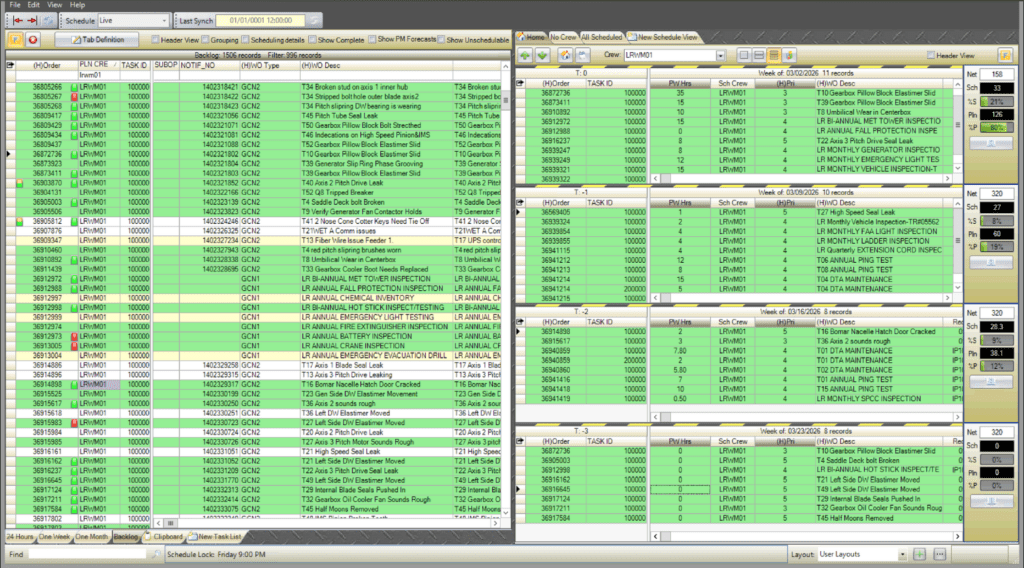
The Work Week Assignment (WWA) screen is where planners review, filter, and place backlog work into the T-week timeline. Work orders from your CMMS appear on the left side of the screen (the backlog) and are assigned to a crew and T-week on the right side of the screen.
View Work Orders in the Backlog
The backlog is where all work orders from your CMMS appear in PaSTA. It provides a centralized view of all open work that has not yet been completed. Users can customize the backlog view by filtering, sorting, and grouping work orders to focus on the jobs most relevant to their planning needs before committing them to a schedule.
Understanding the T-Week Timeline
On the right side of the WWA screen, work is organized into a rolling T-week timeline, filtered by crew.
T-Weeks (Target-weeks) represent the number of weeks leading up to (and following) the target execution week (T0). For example, T-6 is six weeks before work is scheduled to take place, while T+1 is one week after for closing and post execution reporting. This timeline helps teams track readiness activities and ensure work is fully planned before execution.

- T0: Target week when work occurs
- T-x: Weeks before execution (planning and readiness)
- T+x: Weeks after execution (closeout and reporting)
Assign Work Orders to T-Weeks
Work orders from the backlog are assigned to T-weeks using simple drag-and-drop or right-click interactions. Assigning a job to a T-week establishes when the work is expected to occur, without yet assigning specific personnel or equipment.
By placing work into the T-week timeline, the WWA prepares jobs for the next step in the process—Work Week Scheduling—where resources are assigned and execution plans are finalized.