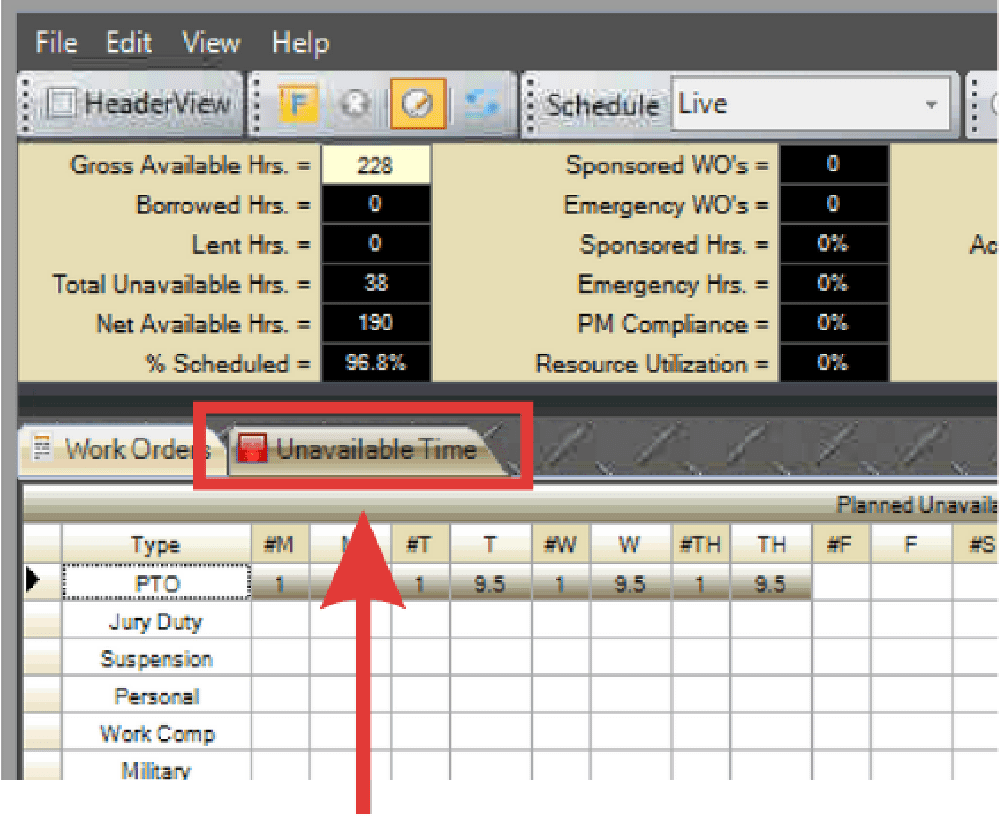
The Unavailable Time tab in the Work Week Schedule (WWS) displays two grids: Planned Unavailable Time and Unplanned Unavailable Time. These grids are used to track hours when personnel cannot be scheduled, either for planned reasons like vacation or training, or for unexpected events that occur during the execution week.
- Select the Unavailable Time tab.
- Determine if the hours belong in the Planned or Unplanned Unavailable Time grid.
- Planned Unavailable Time Grid: Used only during T- Work Weeks to identify planned time such as Vacation, Sick leave, Training, etc. that will not be available to do maintenance work during that particular work week.
- Unplanned Unavailable Time: Used only during T0 Work Week to identify unplanned time that unexpectedly became unavailable during T0 work execution week and does not impact the net available hours.
- In the Personnel grid (lower left), select the desired individual(s) and drag them into the Planned or Unplanned Unavailable Time grid for the chosen type and day.
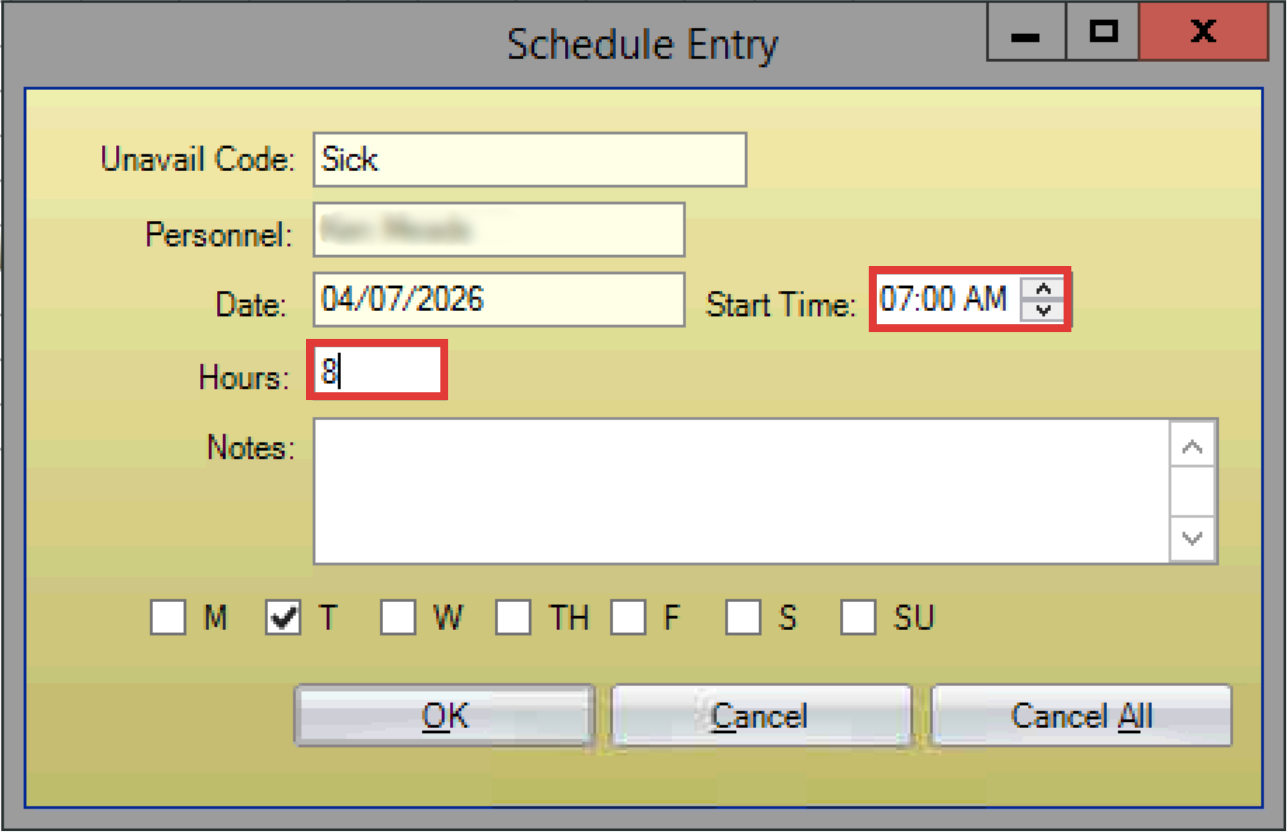
- The Schedule Entry dialog box opens. Select the start time and enter the number of hours the person will be unavailable each day.
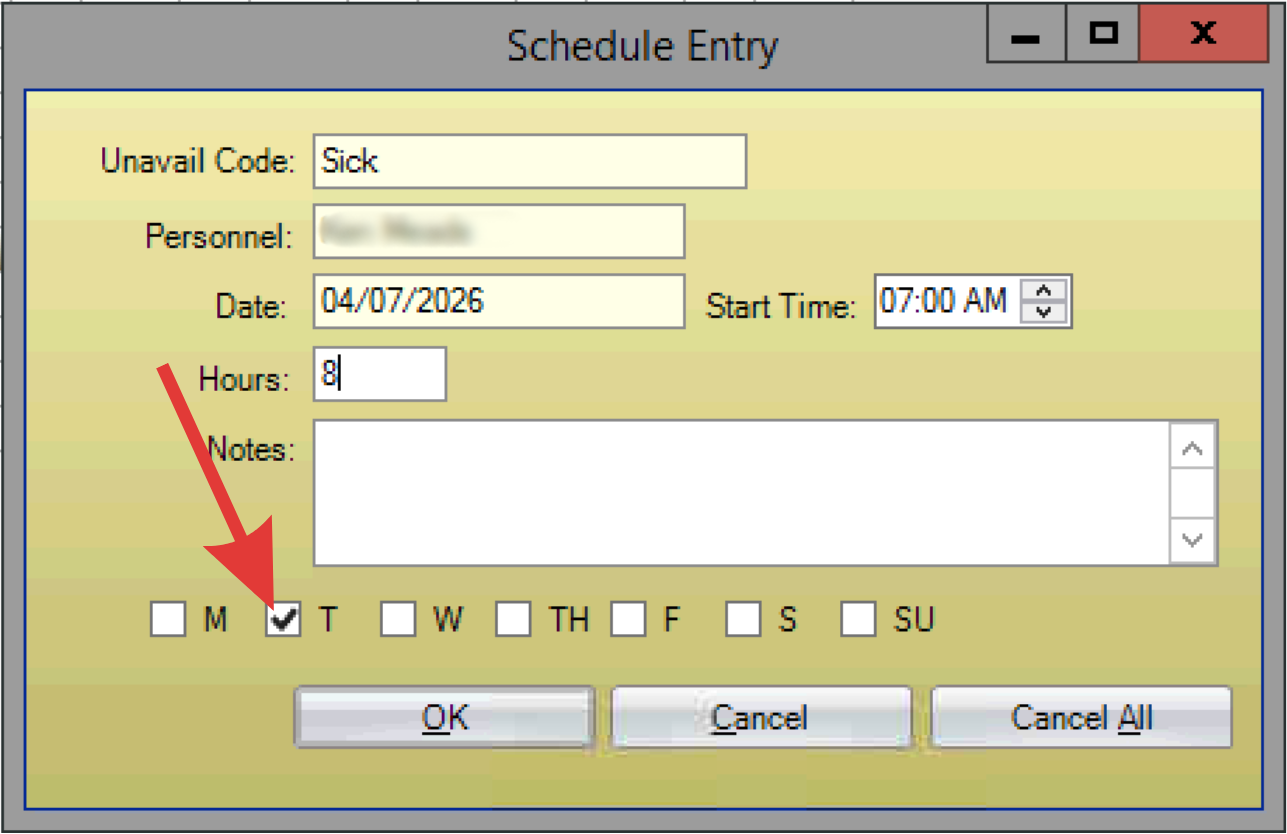
- Select the days of the week the person will be unavailable.
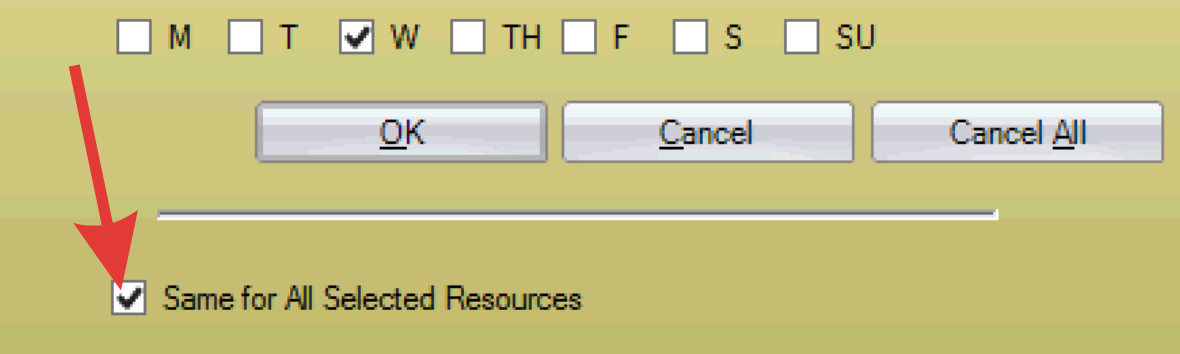
- (Optional) If you selected multiple personnel, choose Same for All Selected Resources to apply these settings to all selected personnel.
- Click OK to confirm and schedule the unavailable time.
- To edit unavailable hours, use the Personnel Details grid in the lower-right corner of the WWS. To move hours, drag and drop them to another day.