
Weekly Snapshot Reports capture crew performance and metrics on a weekly basis.
- Open the reports screen.
- Under Create New Report select the Type as Weekly Snapshot.
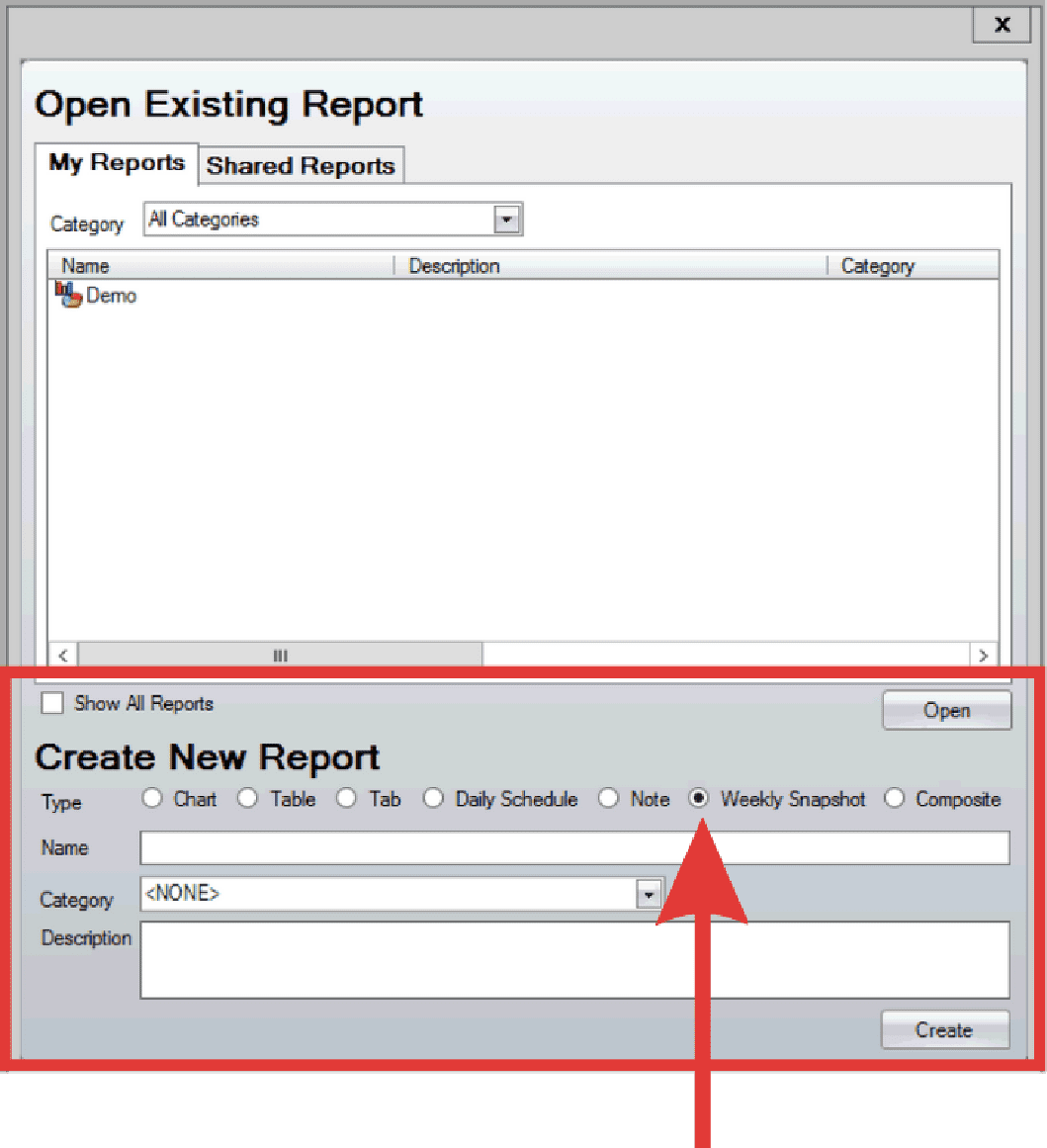
- Alternatively, if the Reports screen is already open, click File > New > Weekly Snapshot Report .
- Input the Snapshot Name and select Create.
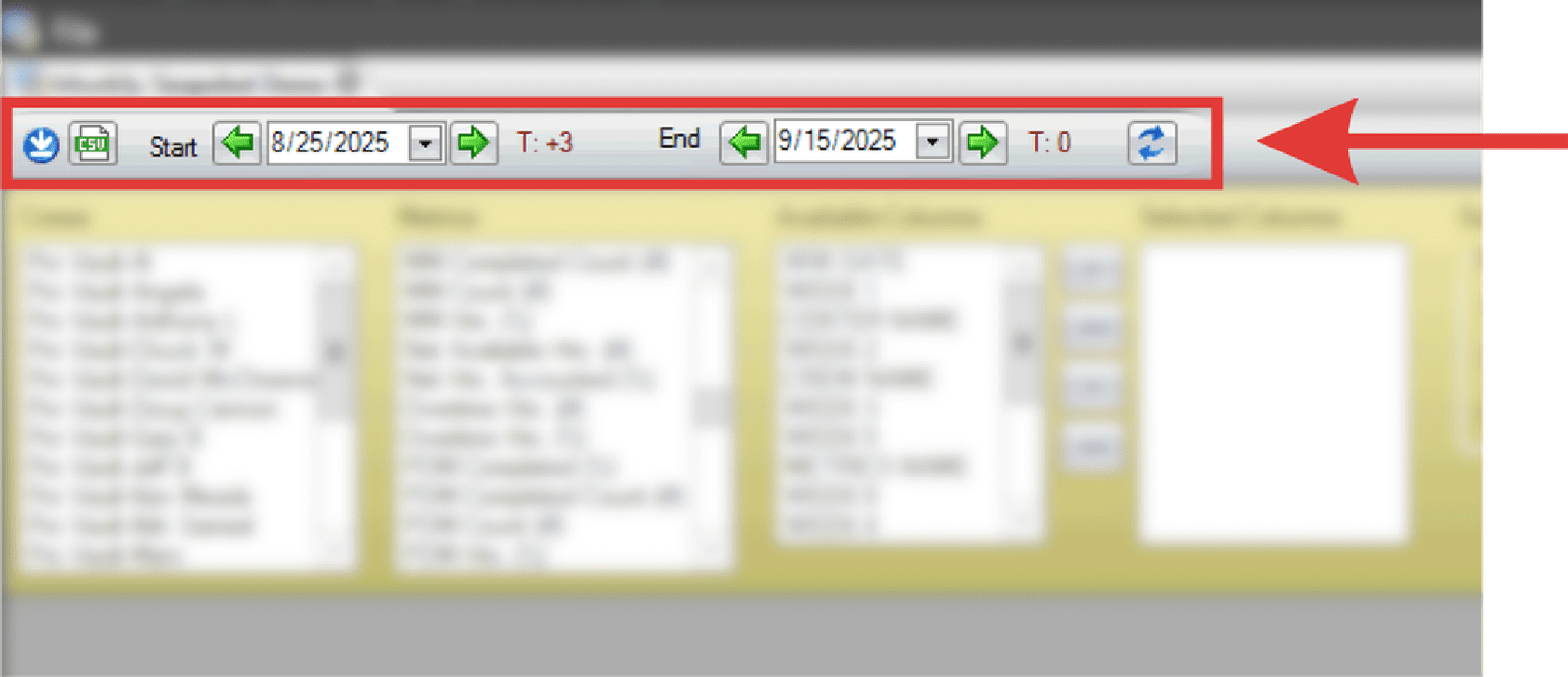
- Select the date range.
- Select the crews and metrics.
- Hold Command (⌘) on Mac or Ctrl on Windows to select individual items, or use Shift to select a range.
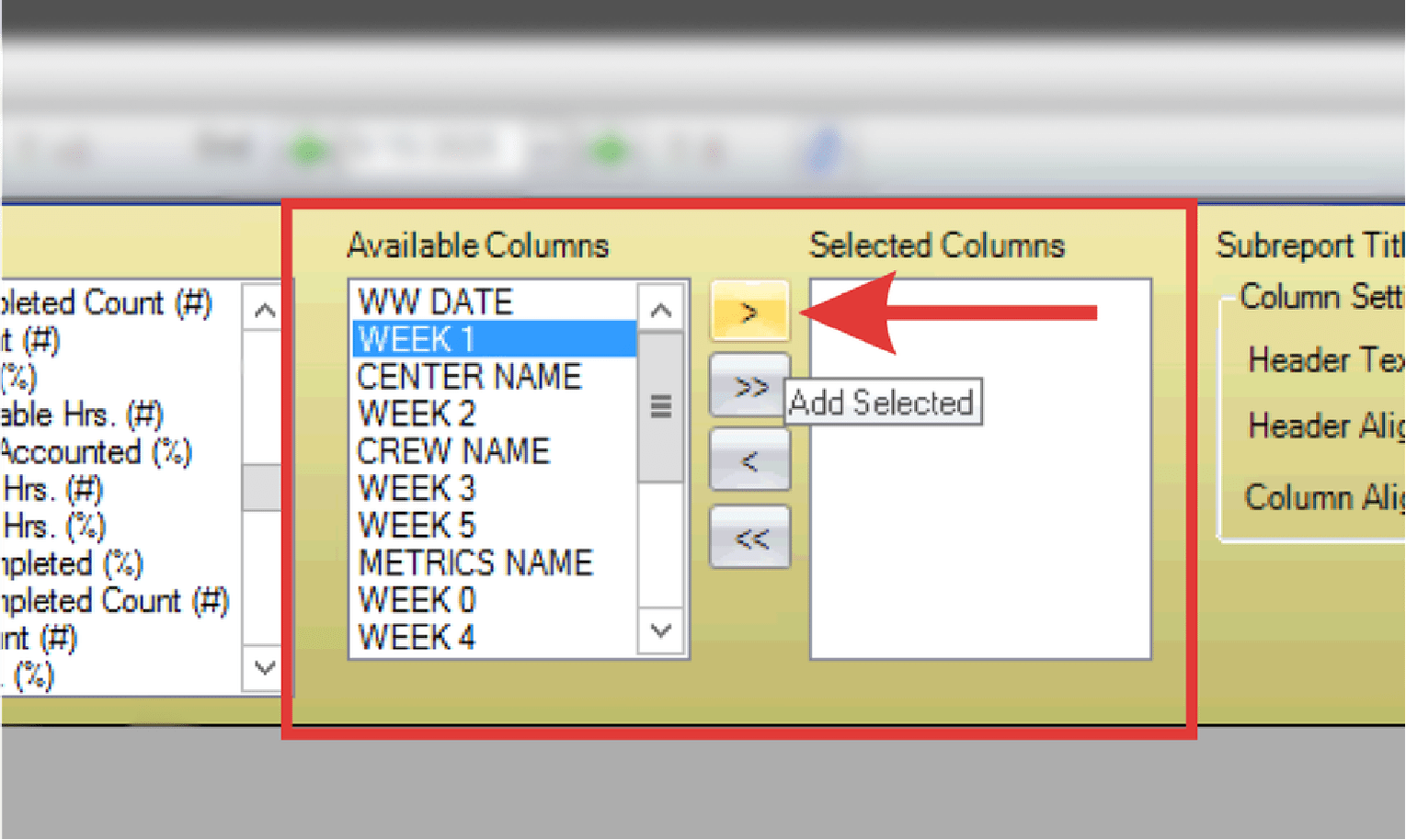
- Select columns from the Available Columns list and use the arrow button to move them into Selected Columns.

- Hold Command (⌘) on Mac or Ctrl on Windows to select individual items, or use Shift to select a range.
- Select the double arrows to move all Available Columns into Selected Columns.
- Modify the Column settings as needed. Click and drag columns to rearrange as needed.
- Select File > Save when finished.
Note: Snapshots are generated automatically each week. To review previous weeks, adjust the date range to display past snapshots.