Jobs in the current T0 week are rescheduled to a future work week using the Roll Task dialog. This function ensures unfinished work is carried forward with appropriate reason codes for tracking.
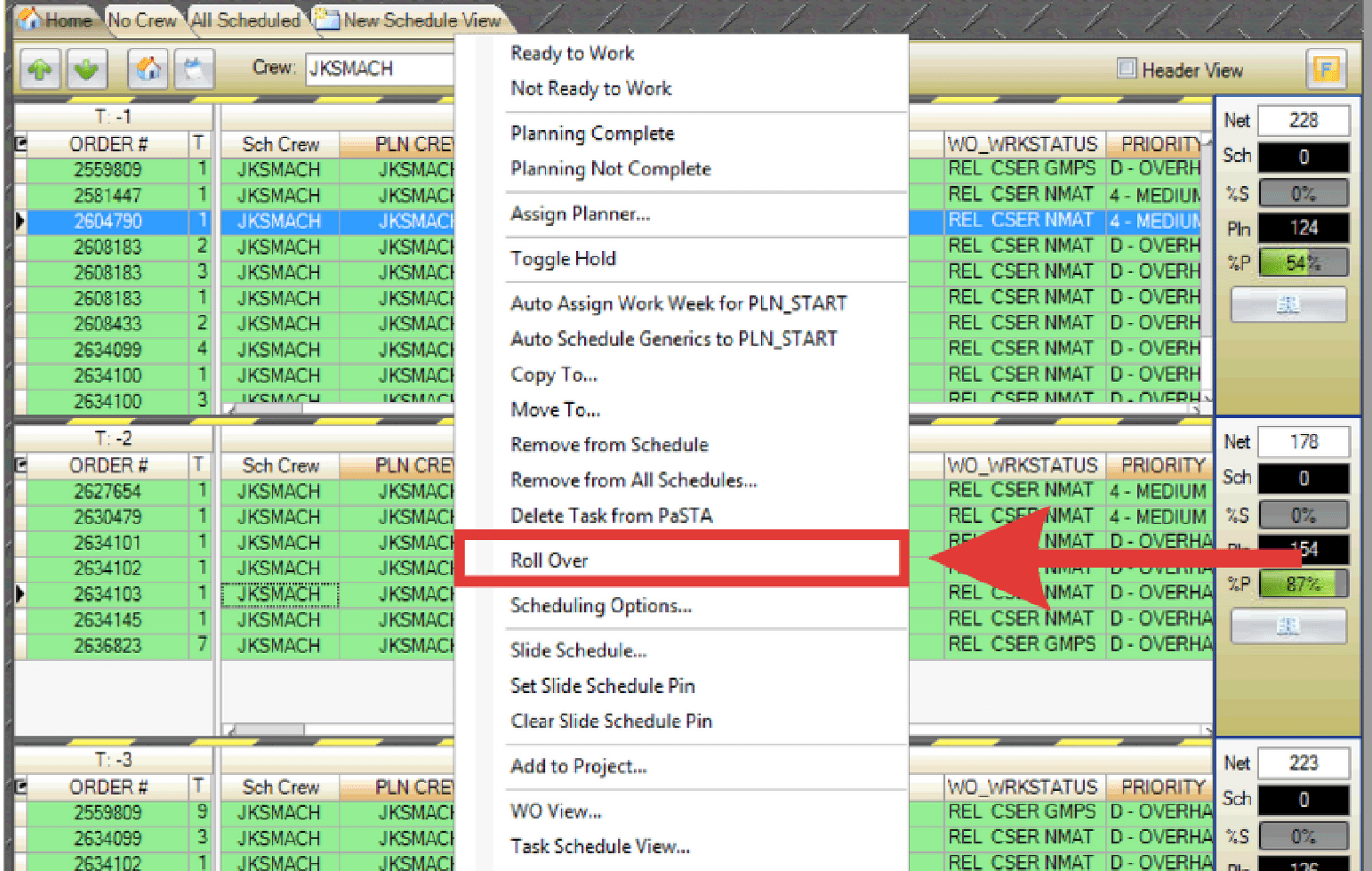
- Right-click the job in T0 and select Roll Over from the menu.
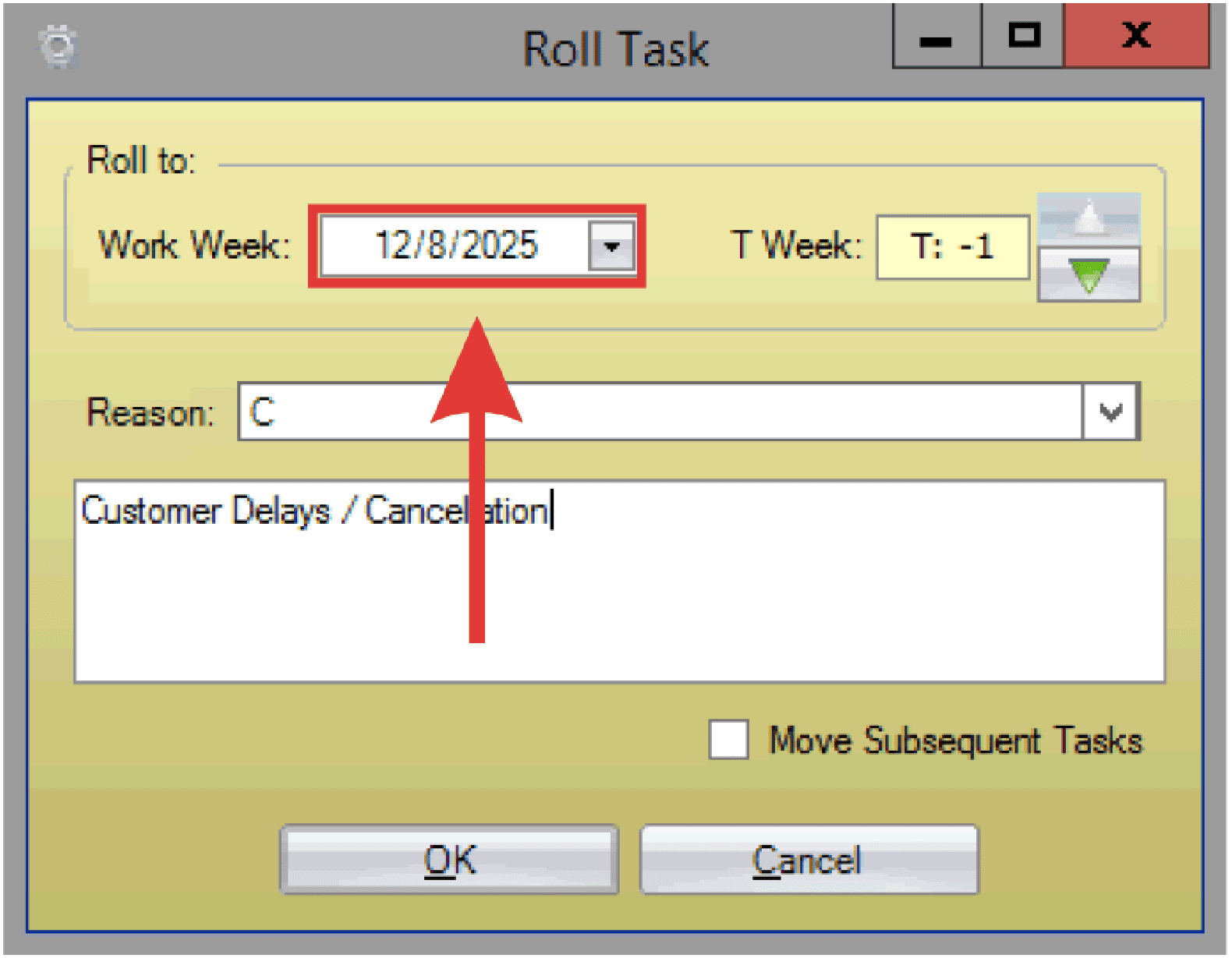
- The Roll Task dialog box opens. Set the target work week using the calendar control, or
- Set the target work week using the green arrows.
- Select a roll over reason code from the drop-down menu (Reason codes are configured in the Admin section).
- Enter any additional notes if needed.
- (Optional) Check Move Subsequent Tasks to reschedule all subsequent task numbers for the work order along with the job being rolled over.
- Click OK to confirm the rollover.