Schedule work orders to a T-Week using one of two methods: drag and drop or right-click scheduling.
Method One: Drag and Drop
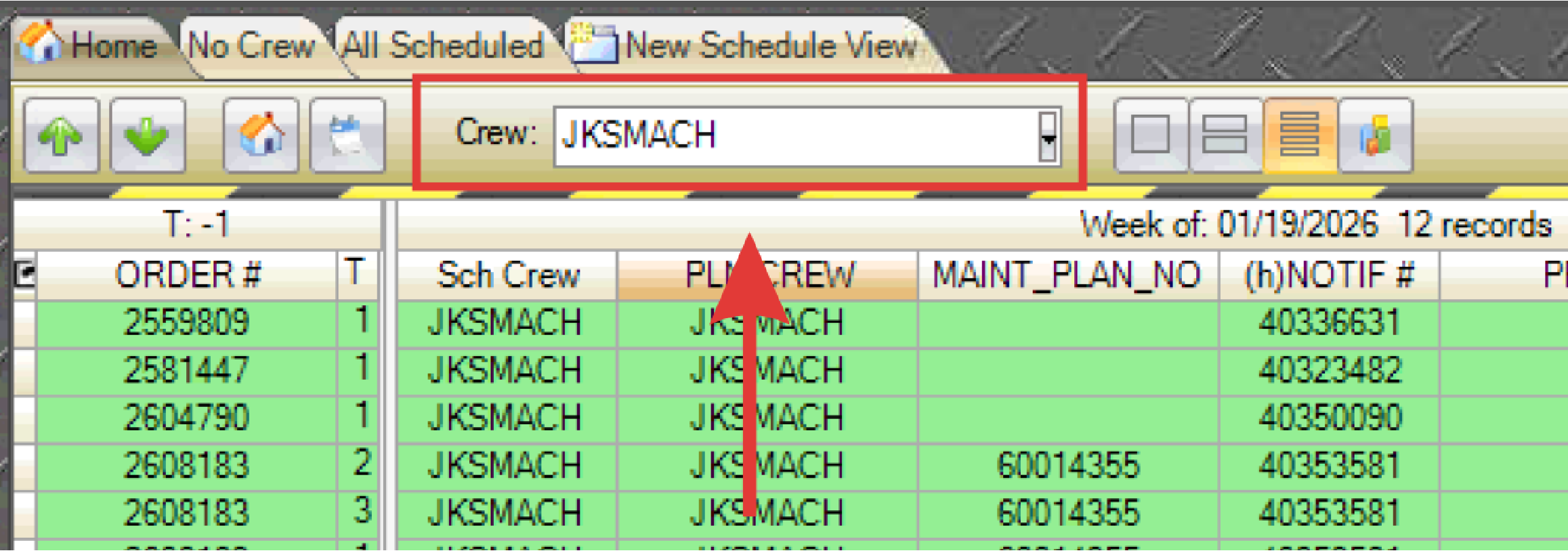
- Verify that the selected T-week crew matches the work order to be scheduled.
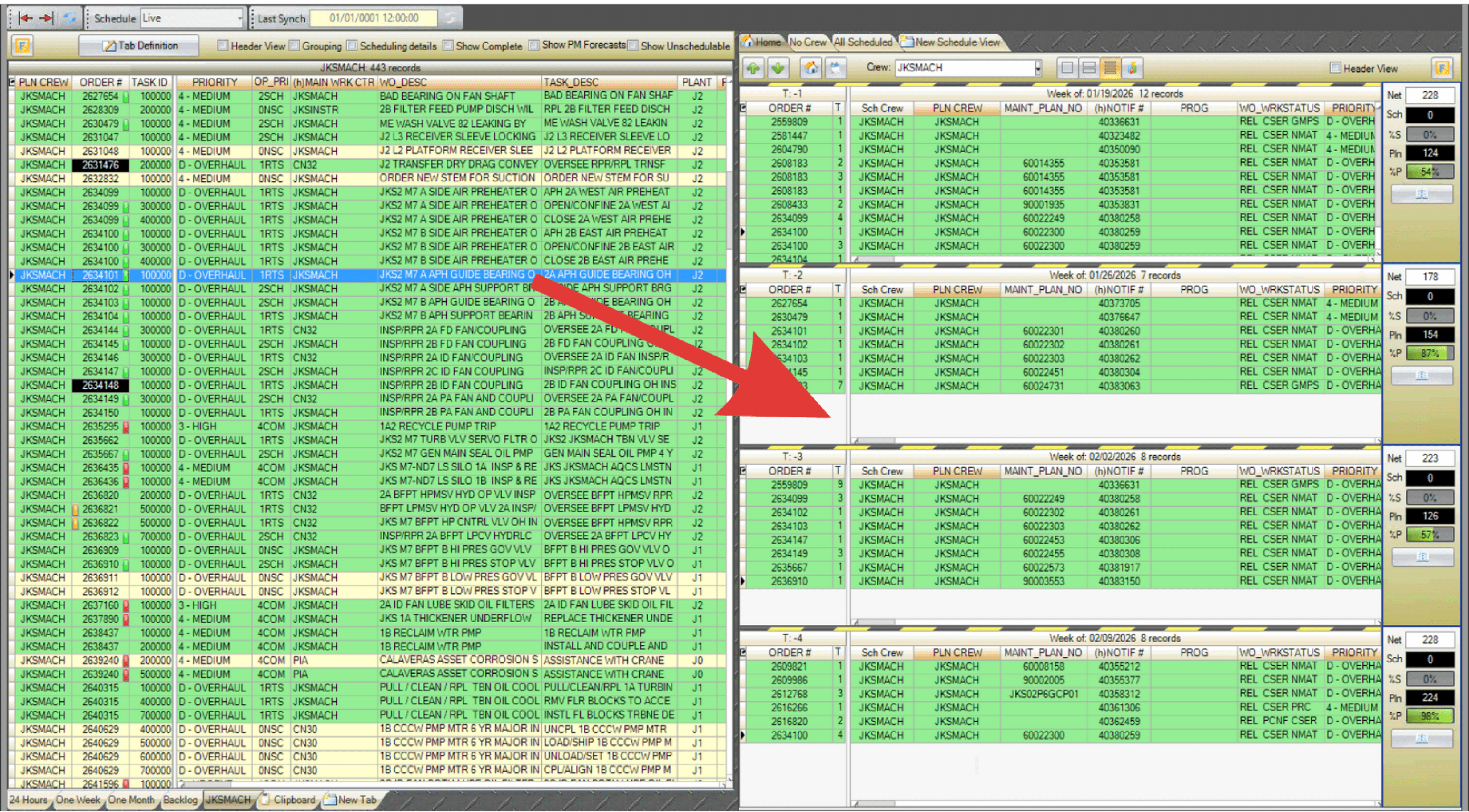
- Drag the desired work order into the applicable T-week.

- Note: If the job is dragged into T-1 after the schedule lock, it becomes emergent.
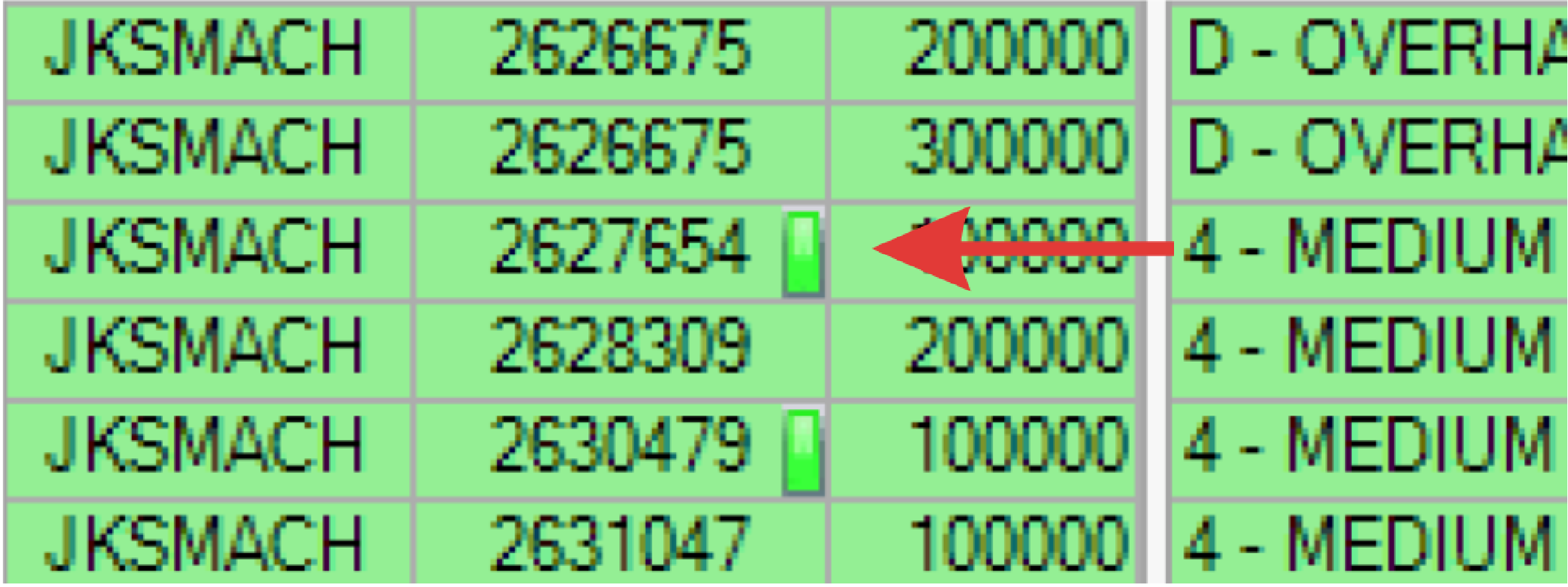
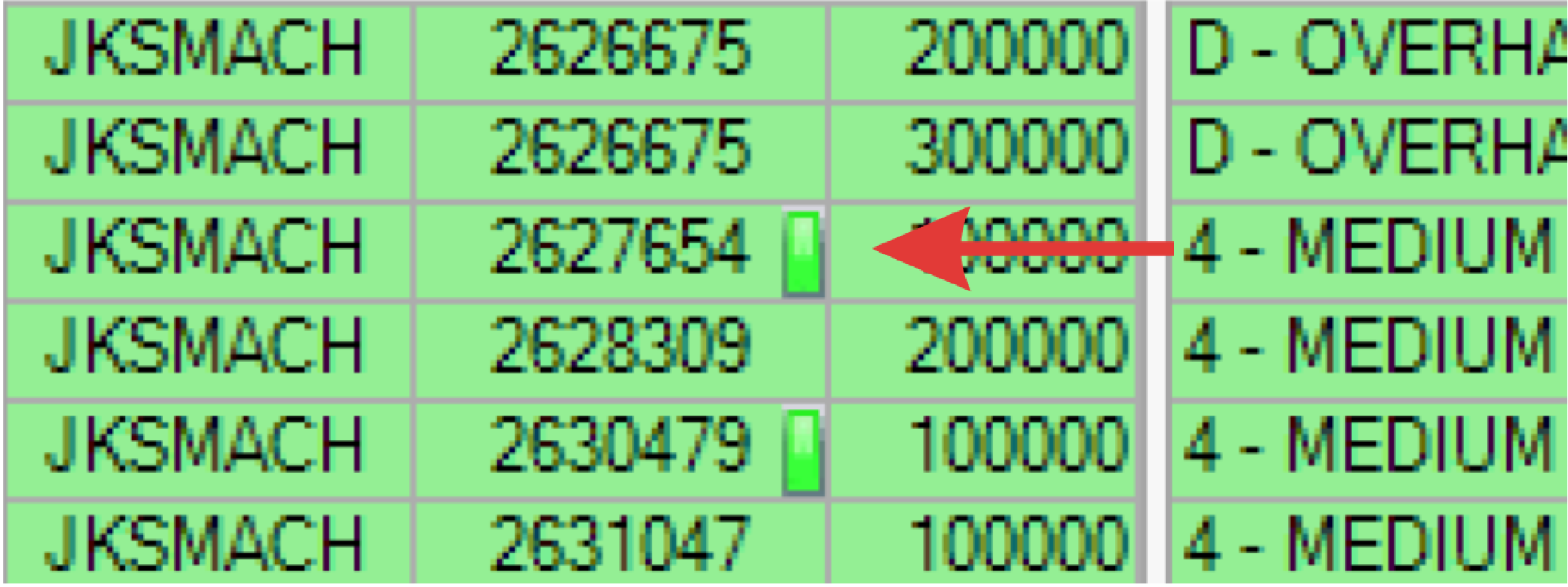
- PaSTA indicates the job is scheduled by displaying a small green indicator on the right side of the Order # cell.
Method Two: Right Click
- Right-click the work order and select Schedule Task.
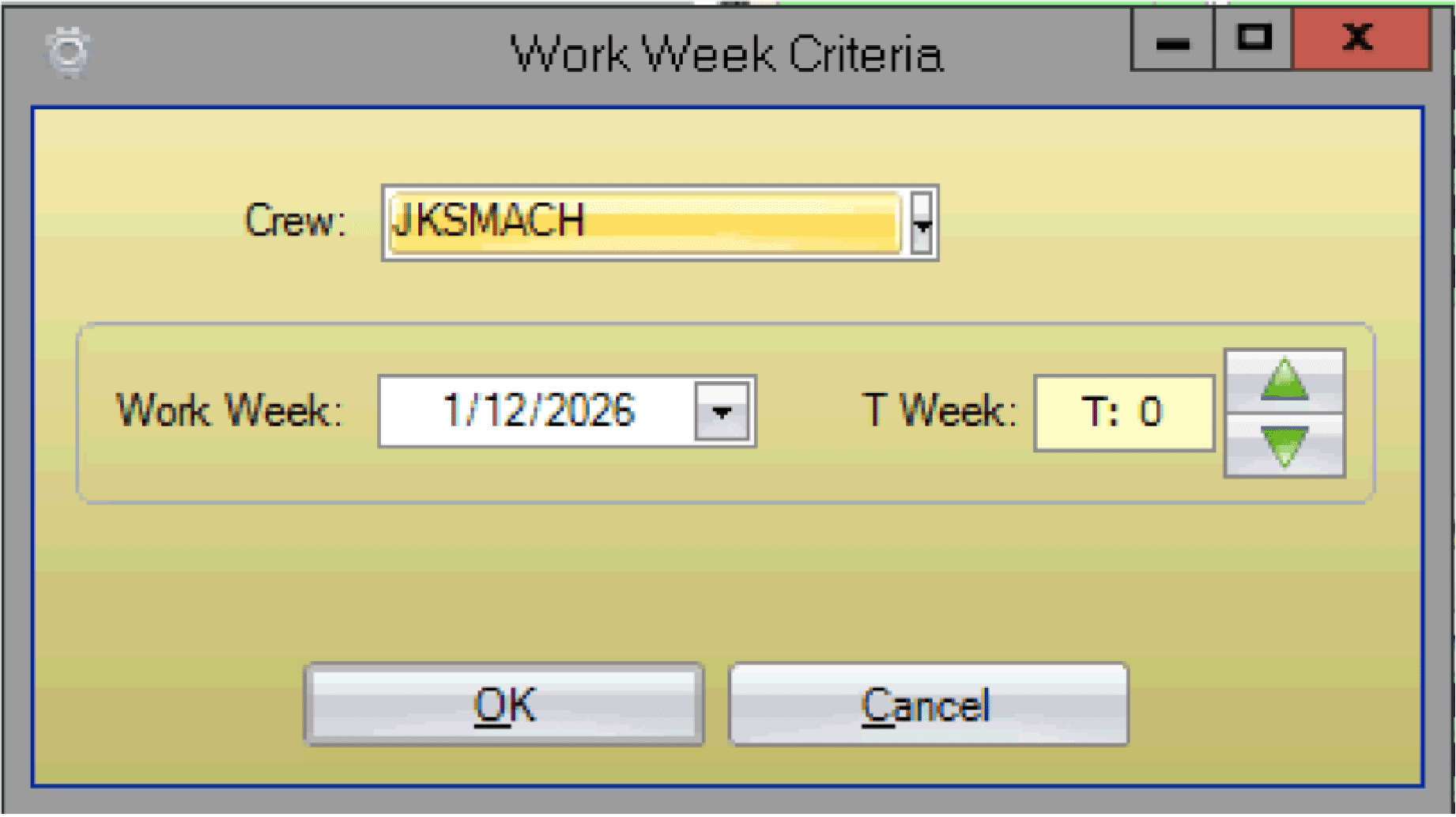
- In the Work Week Criteria window, validate the crew, select the applicable T-week using the work week calendar or T-week arrows, and click OK.
- Note: If the job is placed into T-1 after the schedule lock, it becomes emergent.
- PaSTA indicates the job is scheduled by displaying a small green indicator on the right side of the Order # cell.