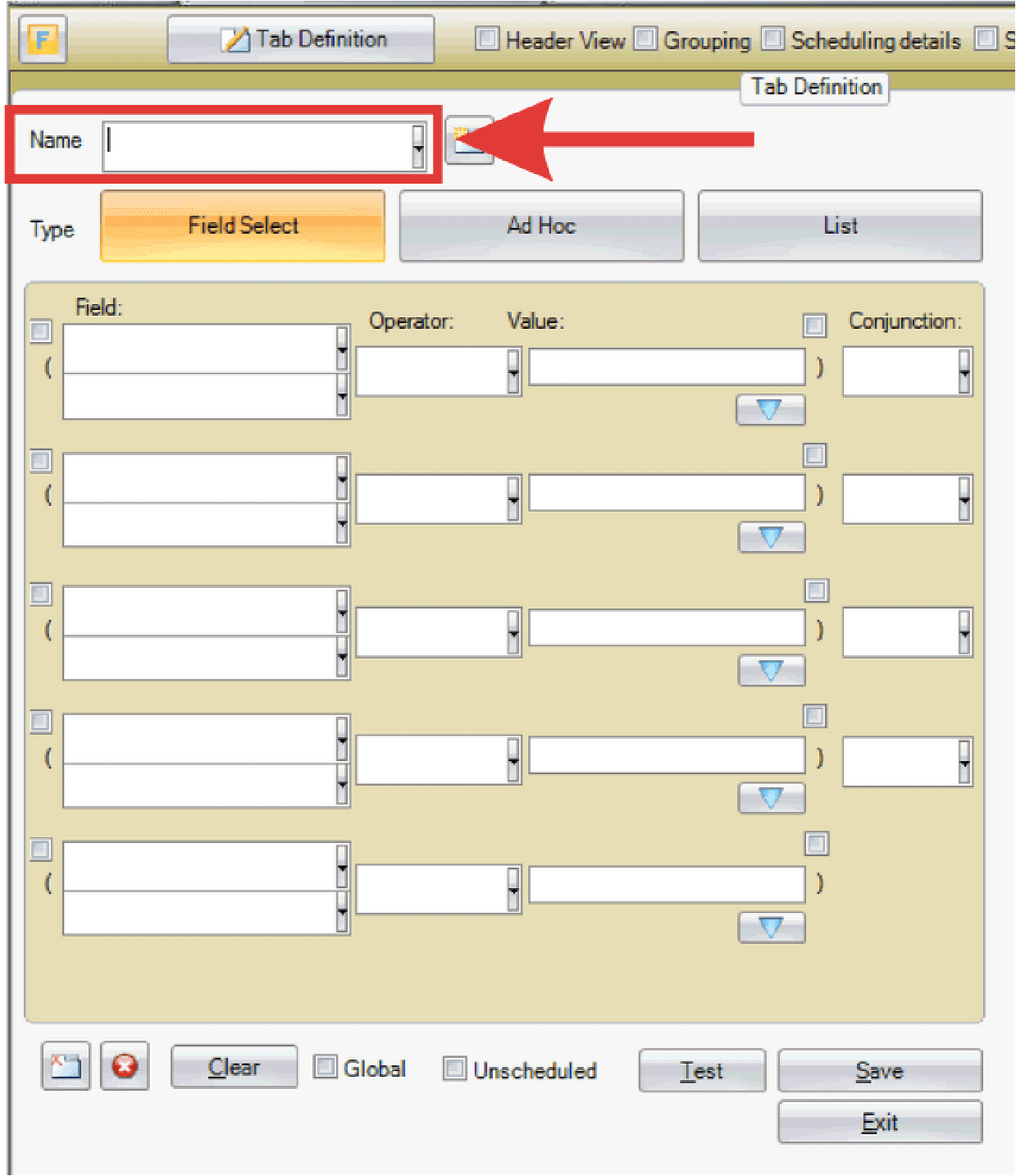
A custom task list tab in PaSTA displays backlog information based on defined criteria, allowing data to be filtered for specific crews, work tasks, or schedules.
- At the bottom of the backlog list, select New Tab.
- In the Tab Definition window, type a name for the tab.
- Observe default Field Select selection.
- Select the main Field category (Work Order, Work Task, Schedule Info, or Project), then choose the specific field from the second dropdown.
- Work Order: This is the work order header level along with all of the associated fields.
- Work Task: This is the Task/Operation level along with all of the associated fields.
- Schedule Info: This is the scheduling information along with all of the associated fields.
- Project: This is the project level along with all of the associated project names that have been created.
- Select the Operator.
- = Equal to the value entered that is associated with the field that was selected.
- > Greater than the value entered that is associated with the field that was selected.
- < Less than the value entered that is associated with the field that was selected.
- >= Greater than or equal to the value entered that is associated with the field that was selected.
- <= Less than the value entered that is associated with the field that was selected.
- <> Less than or greater than the value entered that is associated with the field that was selected.
- LIKE : Data is like the value entered that is associated with the field that was selected.
- NOT LIKE : Data is not like the value entered that is associated with the field that was selected.
- IS NULL : Selects only blank data associated with the field that was selected.
- IS NOT NULL : Selects everything but the blank data associated with the field that’s selected.
- STARTS WITH : Selects data that starts with the value entered associated with the field that’s selected.
- Select a Value. Select the blue arrow to fetch unique values.
- If required, select a Conjunction (AND/OR) to add additional filters to your task list.
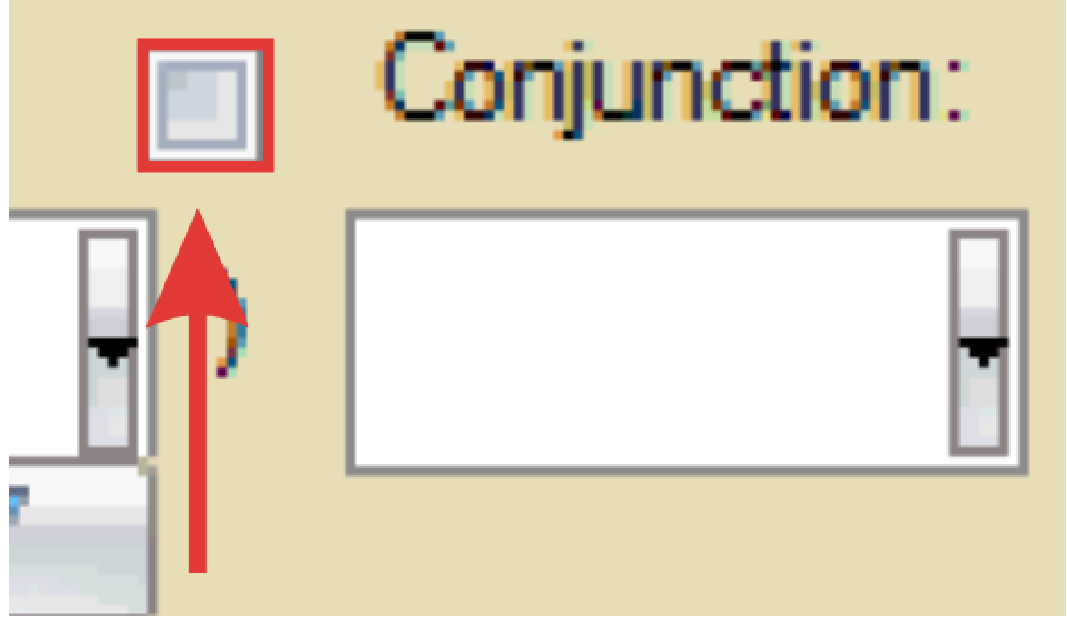
- If required, select the bracket button to group together multiple fields.
- Click the Test button to validate the tab definition. Revise if needed.
- Save.