
A work order can be scheduled multiple times according to a defined pattern (weekly, monthly, yearly, or a custom date range).
Note: This function is not allowed for T0 or T+ weeks.
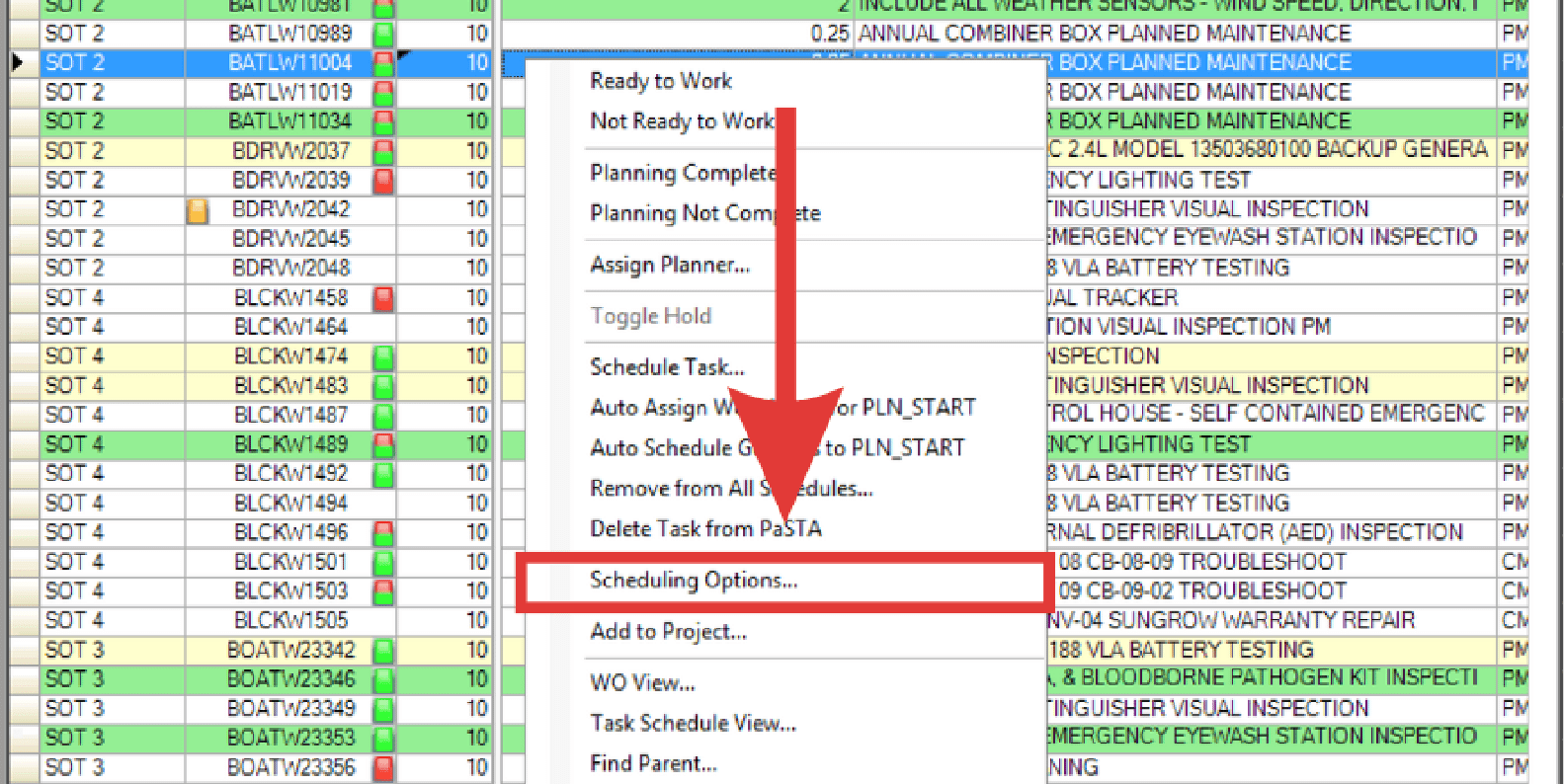
- Right-click the work order and select Scheduling Options.
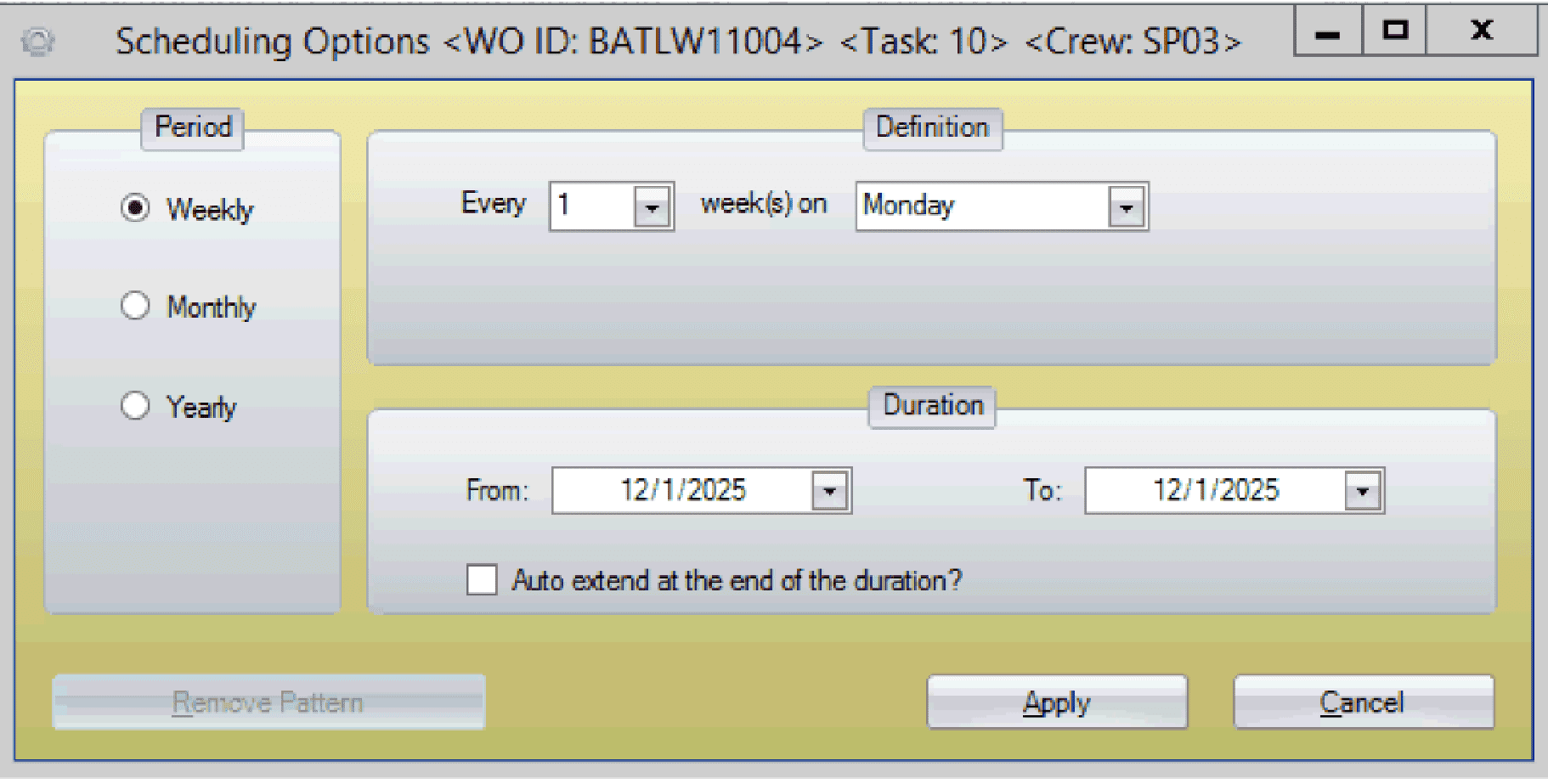
- In the Scheduling Options window, select the period (weekly, monthly, or yearly), definition, the date range the work is to take place, and click Apply.
- When the verification window appears, confirm by selecting Yes.
- Observe that the work order is now scheduled across multiple T-weeks according to the defined pattern.
Remove a Pattern:
- Right-click any instance of the work order.
- Select Scheduling Options.
- Select Remove Pattern. This action removes all scheduled instances of the work order created by that pattern.
